Every AI chat app you’ve used, from a support bot to a coding assistant, comes down to three things: a deployed model, a set of instructions, and a conversation that gets sent back to the model every time you hit Enter. The sixth video in my AI-901 Microsoft Azure AI Fundamentals series builds all three in Microsoft Foundry, from scratch, without writing a line of code.
It’s also where the series moves from theory to hands-on work. Domain 2 of the AI-901 exam, implementing AI solutions with Microsoft Foundry, makes up more than half the exam. If you’re studying for the AI-901 certification or just getting started with Microsoft Foundry, this video is for you.
Foundry Resources and Projects
Two terms come up the moment you create your first project. A Foundry resource is the Azure resource that holds everything shared, like billing, security, networking, and model deployments. A Foundry project is the workspace inside that resource where you actually build, and one resource can hold several projects, each with its own users and work.

The video also explains where Foundry fits next to Copilot. Microsoft 365 Copilot is a software as a service assistant for end users, Copilot Studio is a low-code tool for building agents and workflows, and Foundry is the pro-code platform for developing AI solutions, billed on consumption.
Read the Model Card Before You Deploy
The model card is the spec sheet for every model in the Foundry catalog. Review it before you deploy anything, it tells you what the model accepts and returns, how much it can read in one request (the context window), whether it supports tool calling for agents, what lifecycle stage it’s in, and which deployment options it supports. For anything your customers will touch, the rule is simple: choose a generally available model, not one in preview.

System, User, and Assistant Messages
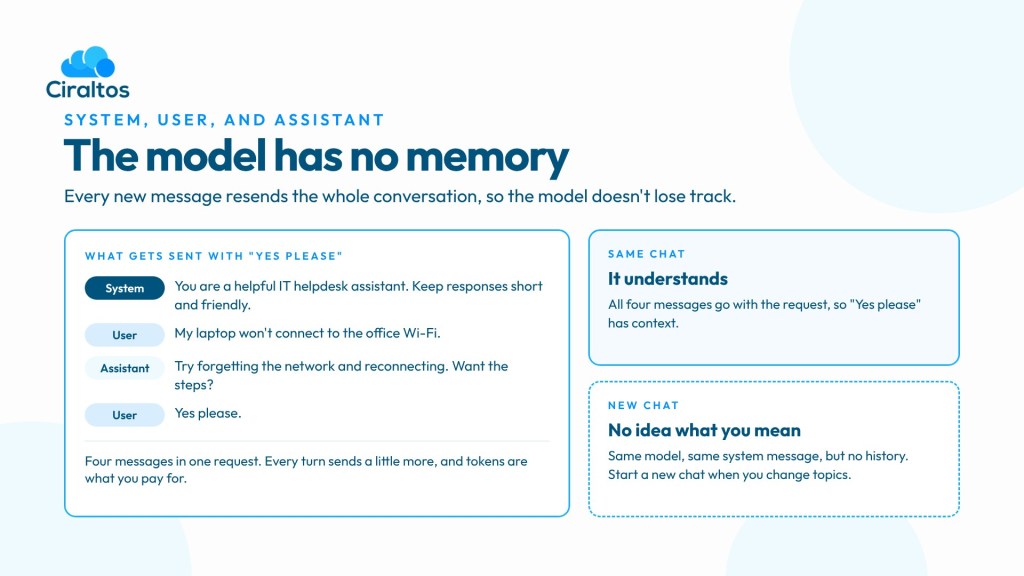
Every conversation with a chat model is a list of messages, and each one has a role. The system message is the set of instructions you give the model before the conversation starts, like a help desk training manual the end user never sees. The user message is what the person types, and the assistant message is the model’s reply.
The key principle is that the model has no memory. Every new message sends the whole conversation along with it, which is the only reason a reply like “Yes please” makes sense. That history also adds tokens on every turn and counts against the context window, which is why starting a new chat when you change topics is a good habit.
Writing Effective System and User Prompts
A strong system message sets the role and scope, defines boundaries, specifies the output format, and includes a “when unsure” rule that gives the model an out for off-topic or unclear questions. A strong user prompt is specific, puts the instructions first, and includes context like the device or the error message. The video also covers techniques worth knowing by name, including few-shot learning, clear syntax, breaking a task down, and grounding, plus common pitfalls like conflicting rules.

Hands-On in the New Foundry Portal
The second half of the video is a full walkthrough. It creates a Foundry project and resource, including what happens when the resource name isn’t globally unique, then tours the new Foundry portal. From there it filters the model catalog, reads the model card for gpt-5-mini, and deploys it with Global Standard.
In the playground, a simple IT helpdesk example shows the no-memory principle in action, then compares a weak system message with a strong one and tests its boundaries with an off-topic request and a password it should never accept. The demo wraps up by finding the project endpoint, the deployment endpoint, and the keys your code will use in the next build, plus how to clean everything up when you’re done.
Watch the Video
If you’re studying for the AI-901 certification or just getting started with Microsoft Foundry, this video gives you a working project, a deployed model, and a tested system message to build on.
And if you find it helpful, subscribe to the channel and turn on notifications so you don’t miss the next video in the AI-901 series, where that deployed model becomes a real chat app built with the Foundry SDK.
Links:
AI-901 course:
mycloud.coach
A Beginner’s Guide to the AZ-900
https://www.udemy.com/course/beginners-guide-az-900/?referralCode=C74C266B74E837F86969
Zero to Hero with Azure Virtual Desktop
https://www.udemy.com/course/zero-to-hero-with-windows-virtual-desktop/?referralCode=B2FE49E6FCEE7A7EA8D4
Hybrid Identity with Windows AD and Azure AD
https://www.udemy.com/course/hybrid-identity-and-azure-active-directory/?referralCode=7F62C4C6FD05C73ACCC3
Windows 365 Enterprise and Intune Management
https://www.udemy.com/course/windows-365-enterprise-and-intune-management/?referralCode=4A1ED105341D0AA20D2E
Exam AI-901: Microsoft Azure AI Fundamentals
https://learn.microsoft.com/en-us/credentials/certifications/exams/ai-901/
Study guide for Exam AI-901: Microsoft Azure AI Fundamentals
https://learn.microsoft.com/en-us/credentials/certifications/resources/study-guides/ai-901


